Answer the profitability question with job costing in QuickBooks Payroll.
Payroll

Answer the profitability question with job costing in QuickBooks Payroll

A client wants to know if a job was profitable, which is a reasonable question. You check the project report and see the revenue and expenses, but the labor costs are missing or only estimated. This happens because hours for that job were not tracked in a way that shows up in the books.

You do your best to answer, but it’s not what the client really needs. Both of you know the data isn’t reliable enough to make decisions.

Labor is usually the biggest cost for construction, professional services, agencies, or field service jobs. If labor isn’t assigned to each project, you can’t trust the profitability reports. Even worse, your client might price future jobs using incomplete data.

You don’t have to leave your project-based clients guessing. QuickBooks Payroll now links payroll directly to project and class tracking in QuickBooks. This closes the labor data gap for accountants, with no manual workarounds needed. Here’s how this setup can improve job costing for your clients.

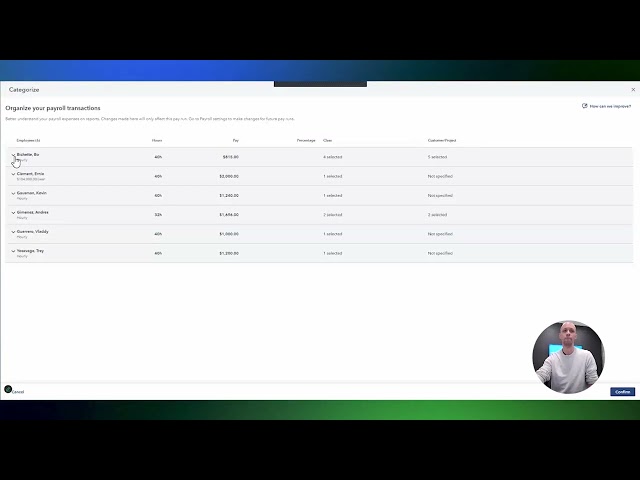
Watch the video to see Job Costing in action


When you connect QuickBooks Time to QuickBooks Payroll Premium or Elite, hours tracked by job flow directly into payroll. Payroll then automatically posts labor costs to the correct class or project in QuickBooks Online, with no journal entry required.


Before this integration, employees tracked their time in a separate system. At the end of the month, someone—often you—had to match hours to jobs and make adjusting entries. If the time data was inconsistent or late, those entries were just estimates.

With job costing in QuickBooks Payroll, employees log hours for each job or project in QuickBooks Time. Those hours go straight into payroll. When payroll runs, labor costs are automatically assigned to the right class, customer, or project in QuickBooks Online. The books show the true labor cost for each job right away.

For clients with several jobs happening at once, this is more than just a small efficiency boost. It’s the difference between having real job profitability data and not having it at all.

How to use job costing to have better profitability conversations


When labor costs are in the books by job, you can show a client not just whether a job made money. You can also tell them which jobs consistently pay well and which job types are underpriced.


If your clients manage ongoing projects, they have historical data to pull from. Whether they’re a marketing agency or a general contractor, this data tells a story about their business model. Which project type runs over on labor? Which service line has tighter margins than the pricing assumes? Where is the client absorbing cost overruns that their estimates didn't account for?

When you allocate labor data, you can truly advise your clients, not just tidy up their books. Their QuickBooks Online project reports will show real labor costs from each pay run. You can pull a job profitability summary, compare labor to estimates, and suggest pricing changes before the next bid.

Which client types benefit most from job costing in payroll?


Construction, professional services, agencies, and field services firms all price work based on labor. Job costing in QuickBooks Payroll provides the data you need to support these clients properly.


Not every client needs job costing in payroll, but it can be a tremendous benefit for project-based industries. You’ll see the biggest impact for clients in:

Construction and contracting: Job cost accounting is standard in this field. If payroll isn’t assigned to jobs, the job cost reports your clients use for managing projects and bidding are incomplete. Linking payroll to project tracking solves this problem.

Professional services (legal, consulting, engineering): These businesses often bill by the hour for each engagement. Assigning labor by project helps with profitability analysis and the paperwork needed for client billing.

Marketing and creative agencies: Retainer and project work benefit from knowing if the hours worked match the revenue earned. When payroll is assigned to each client or project, you can check margins by account.

Field services: Technician labor is often the biggest part of each job’s cost. Tagging hours to jobs in QuickBooks Time and bringing that data into payroll gives your clients useful information for pricing service calls.

If you’re using a payroll solution that doesn’t link labor to jobs, your clients are already missing out. Connecting the two systems gives you cleaner data that your clients can use to protect their profits.

How to set up job costing in QuickBooks Payroll

To set up job costing, start by having a simple conversation with your client. 

Step 1: Confirm the right plan. If your client wants to use multi-class allocation or QuickBooks Time integration, they’ll need the Premium or Elite plan, and while both plans support class and project tracking, only Elite includes Dimensions. Make sure you pick the best option before turning on the feature. In their QuickBooks Online settings, turn on class tracking and confirm projects are set up. Classes and projects in QuickBooks Online are what payroll allocates to.

Step 2: Connect QuickBooks Time. With a Premium or Elite plan, you can link QuickBooks Time to QuickBooks Payroll. This lets employees log hours for each job in the time tracking app.

Step 3: Set up cost allocation in payroll settings. Make sure cost allocation by class or project is turned on. This way, each payroll run assigns labor costs to the right project in QuickBooks.

Step 4: Run payroll and review. After the first payroll run with job costing, pull the project profitability report in QuickBooks Online. Confirm labor is posting correctly by job.

How to give clients real profitability data from a single system

When payroll lives in the same system your clients use to run their books, you're not reconciling across platforms to answer a basic question. With QuickBooks Payroll, payroll data, project costs, and financial reports all live inside QuickBooks Online. It’s the same place where you close the books, run profitability reports, and advise on pricing. When a client asks whether a job made money, the answer is already there.

Now is a great time to talk to your clients about upgrading their plan. With the ProAdvisor Revenue Share Program, you can earn $300 for each new Premium subscription and $500 for each new Elite subscription. The promotion runs until July 31, 2026. If you have clients with project-based businesses who aren’t using QuickBooks Payroll, this is a good chance to see if it’s right for them.

QuickBooks Payroll gives your project-based clients real profitability data.

FAQ about QuickBooks Payroll

Does job costing work with all QuickBooks Payroll subscription plans?

Partially. Core plan users can tag time to a single project per employee. However, your client needs QuickBooks Payroll Premium or Elite to assign multiple classes per paycheck and to integrate with QuickBooks Time.

Does the client need QuickBooks Time for job costing to work?

Yes, QuickBooks Time integration is required. This setup allows you to track employee hours and link them directly to payroll. If your client doesn't use QuickBooks Time, confirm what's available for your specific setup with your QuickBooks account team. If your client has employees working on multiple projects or classes in the same pay period, using QuickBooks Time will make the payroll experience much easier.

What labor costs are allocated to each job?

Gross wages, employer payroll taxes, and applicable benefits costs post to the designated class or project in QuickBooks Online with each payroll run. No manual journal entry is required. Taxes and benefit contributions are tagged automatically and only pay items need to be categorized during time entry or when running payroll.

How does job costing in QuickBooks Payroll affect the books?

Labor costs post directly to the class or project in QuickBooks Online when you process payroll. Your client's project profitability report reflects the actual labor allocated from each pay run.


Recommended for you

Get the latest to your inbox

Get the latest product updates and certification news to help you grow your practice.

Looking for something else?

Get QuickBooks

Smart features made for your business. We've got you covered.

Tax Pro Center

Expert advice and resources for today’s accounting professionals.

QuickBooks Support

Get help with QuickBooks. Find articles, video tutorials, and more.

How can we help?
Talk to sales 1-800-497-1712

Monday - Friday, 5 AM to 6 PM PT

Get product support