FAQs about QuickBooks Bill Pay
How does QuickBooks Bill Pay help prevent duplicate vendor payments?
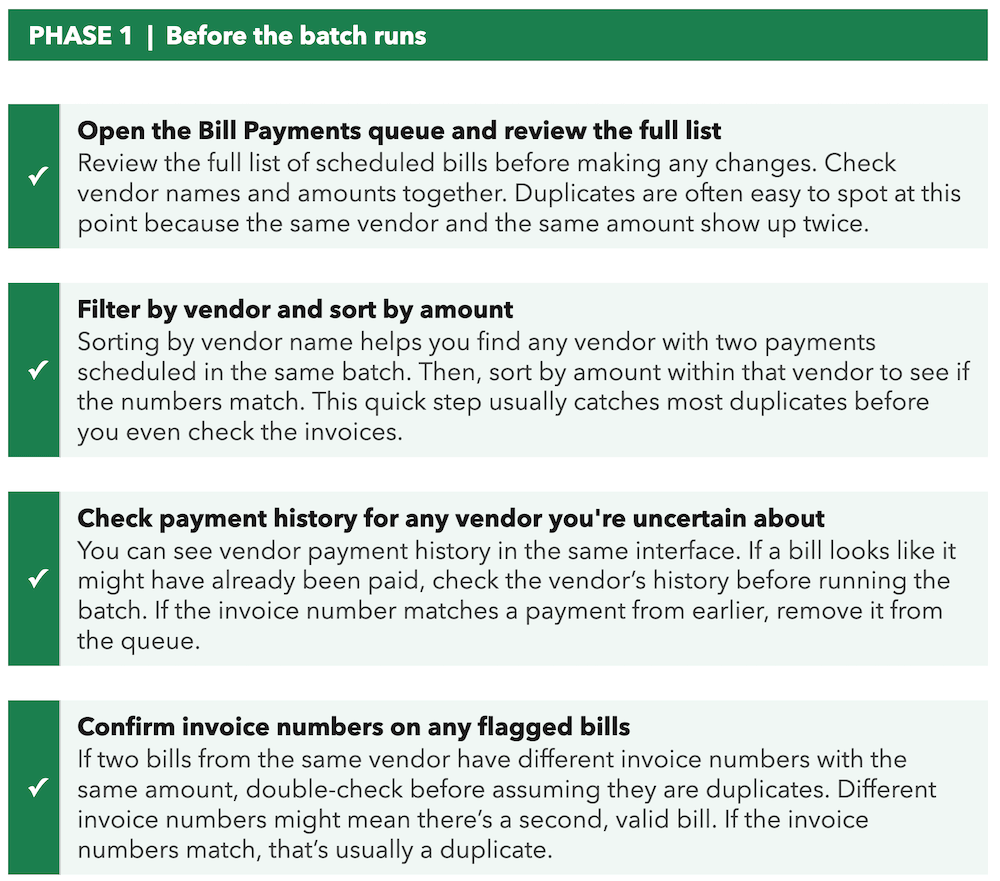
The Bill Payments queue surfaces all scheduled bills before the batch runs. You can review the full set, identify duplicates by vendor and amount, and remove or adjust any bill before it processes. Vendor payment history is visible in the same interface, so you can confirm whether a specific invoice has already been paid without leaving the page.
Does QuickBooks Bill Pay automatically detect duplicate invoices?
When entering or scheduling a bill payment, QuickBooks checks for existing bills or payments with similar details (vendor, amount, date). If a potential duplicate is detected, a warning message appears to notify you. QuickBooks Bill Pay surfaces all scheduled payments in the Bill Payments queue before the batch runs, giving you a structured opportunity to catch duplicates. The queue is designed for review before processing, not silent deduplication. Matching by vendor name and amount in the queue is typically how duplicates are identified before money moves.
What is the best way to organize month-end AP batches in QuickBooks Bill Pay?
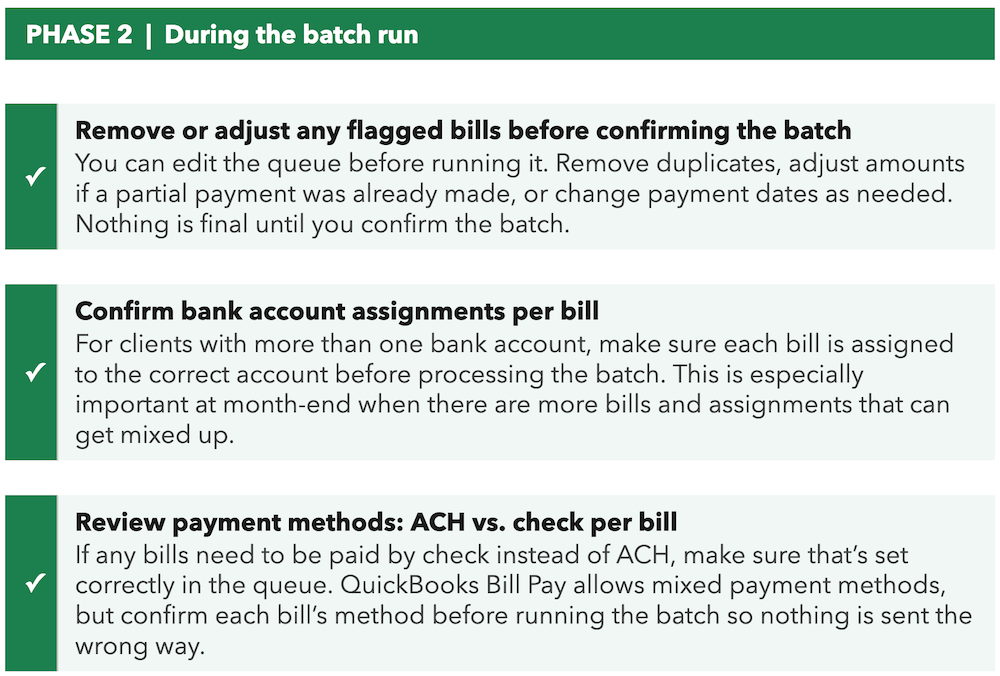
Run through a consistent pre-flight review before every batch: Open the Bill Payments queue, sort by vendor and amount to spot any duplicates, verify payment history for any uncertain bills, and confirm bank account and payment method assignments per bill. Nothing is committed until you confirm the batch, so the queue is your last checkpoint before anything goes out.
Can I remove a bill from a batch after scheduling it but before it processes?
Yes. Bills remain editable in the Bill Payments queue until the batch is confirmed and processed. You can remove individual bills, adjust amounts, change payment methods, or update payment dates within the queue before the batch runs. Once the batch processes, standard reversal or recovery processes apply depending on the payment method.