Certify now to unlock benefits ahead of ProPartner Accountants’ projected January 2027 launch.  
Register for the Dec 8–9 certification conference
Creating Client Insights with superhero X-ray vision.
product update

Creating Client Insights with superhero X-ray vision

One of the new features of Intuit Accountant Suite provides an opportunity we have never had before as QuickBooks ProPartners: the ability to watch over all of our clients at once.

While I have SOPs and checklists in place to know what tasks are ahead, I’ve never had an overview of what’s happening in my clients’ QuickBooks Online files, what’s happening in their businesses, and what’s trending in their industries.

Client Insights, available in the paid Accelerate tier, does all these things, helping me prioritize my attention before trends become disasters. If I know one of my clients is struggling before they do, I’ll be able to swoop in to save them.

And if I see that they’re doing well, I’ve created an opportunity to help them meet their goals, whether it’s opening a new location or selling the business. This elevates me to superhero status. 

As with most of Intuit Accountant Suite’s new features, you can start with their canned templates, then customize the Insights to hone in on what you want to know…and what your clients wish they knew.

Defining your mission parameters

I’ve discovered that the most practical way to get actionable insights into my clients is by combining them together in functional groups.

We’ve long been able to create Custom Fields and assign them to clients, but Intuit Accountant Suite gives that designation a new purpose. 

I created these custom fields and assigned them to my entire Customers list:

  • Industry. I used the drop-down to specify verticals including Construction, Retail, Medical, Services, and Real Estate.
  • Region, to group my clients by location. I have options for Oregon, where I live, and then West, Mountain, Central, and East. For me, time zones are useful since my entire practice is virtual, but for others I’m sure traditional geographic zones might be more practical.
  • Entity Type, to distinguish between my sole proprietors, LLCs, S-Corps, and nonprofits.
  • Wholesale, to filter for clients where I pay for their subscription.

Other useful groups might include service lines, CAS frequency (daily, weekly, monthly, quarterly, annual), revenue threshold, or even where they are in their business lifecycle (startup, growing, established, preparing to sell, closing).
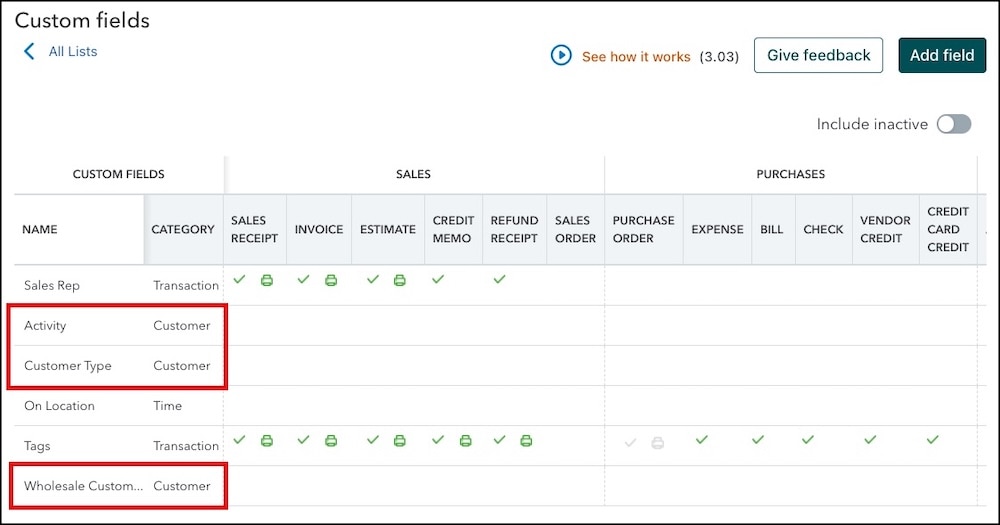
Accounting software custom fields settings screen.

Once you’ve created your fields, it’s easy to assign them in bulk. While looking at Clients > Client list, check off all the companies in a specific category, then click Assign Custom Fields.

Protip: where possible, use the Search to filter for LLCs, Inc., construction, and other tell-tale hints in the business names.

Cross client portfolio insights: Your Bat-Signal, hearing the cry for help

Once you have grouped your clients into useful collections, head to Work > Client Insights.

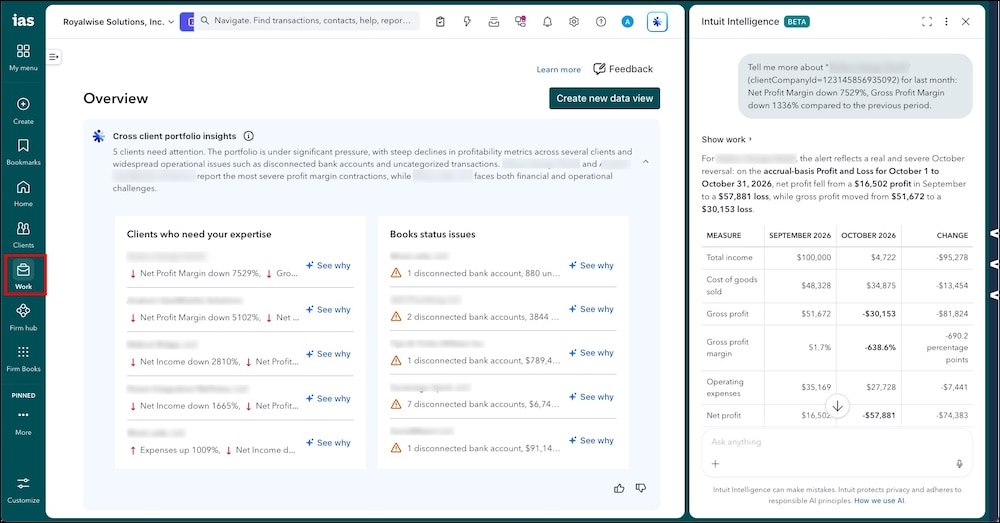
The first thing you’ll notice is Cross client portfolio insights, where Intuit Intelligence surfaces clients with issues you should have your eye on. Click See why for an in-depth analysis of what’s happening in the company that triggered anomaly detection. What was behind the significant change in activity? What villany lies afoot?

Financial advisory dashboard with portfolio insights.

Here you’ll also see Books status issues calling your attention to disconnected bank transactions feeds. Clicking See why surfaces uncategorized transactions and connections that need to be refreshed.

Your clients will think you have psychic abilities.

Favorite Views: Mission control for KPIs

Scroll down to Favorite Views. This is where your inner superhero derives your secret powers.

There are three default views: Balance sheet data, Bookkeeping data, and P&L data.

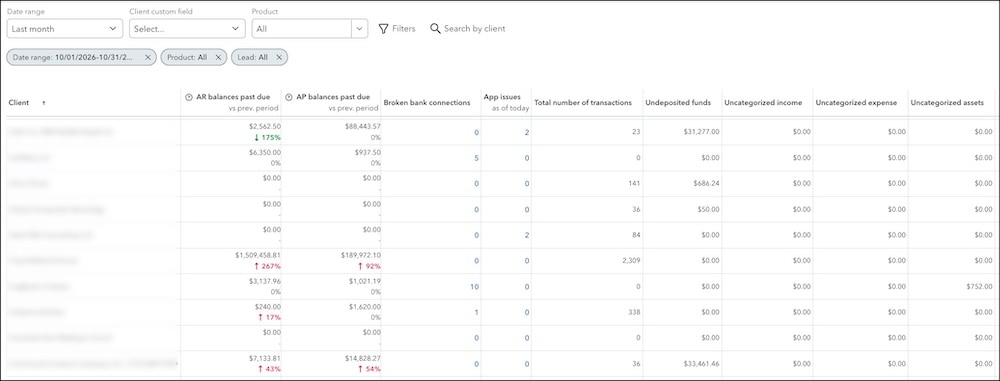
Let’s start with Bookkeeping data, since this alerts you to issues most related to transaction entry. It surfaces significant changes to A/R and A/P, broken bank connections, disconnected apps, Undeposited Funds balances, and any Uncategorized Income, Expenses, and Assets, which are always misentered data.

Analytics dashboard table with performance metrics.

The P&L data dashboard focuses on revenue, cost of goods sold, expenses, net profit, gross profit margin, and net profit margin. The Balance sheet data calls your attention to your assets and liabilities.

Once in any of these data sets, you can adjust the Date range, and filter by Product (version of QBO) or which employee is the Lead.

Where it gets interesting is filtering these dashboards by the Client Custom Fields you created earlier. I like to filter by my Industry field to focus on what’s happening for my construction clients or my real estate moguls. 

Protip: Ideally, companies in an industry vertical should be trending together due to season or economic impact. If one is doing better (or worse) than the others, that’s worth a meeting with the business owner.

Any of these dashboards can be further refined by clicking on the Customize button. Turn on and off additional KPIs and reorder them to suit your needs and interests.

Custom dashboards: Building your watchtower

What’s your superhero strength? Create custom dashboards to focus your x-ray vision directly at the deliverables you promise in your engagement proposals.

Payroll’s salary sentinel

Let’s say you run payroll and watch over labor costs for your clients. First, create a service line custom field to filter for payroll clients, then build a specialized dashboard with fields to analyze whether staffing levels are financially sustainable.

To do this, click the Create new data view button in the upper right. Here you will see the same three templates that you can use as starting points, along with three Tax data views for ProConnect Tax users: Federal client tax data, 1120-S client tax data, and 1065 client tax data. 

Click the Create custom view link on the upper right to start from scratch. Click the Customize button, then drop down the KPIs list and choose Payroll. Select all the fields, and rearrange them if you’d like. Also add in Gross Profit and Net Operating Income for context. Click the Pencil next to the title Custom Dashboard at the top and change the name to Payroll Dashboard. 

Protip: Now you can keep an eye on each client’s Payroll cost ratio to make sure they’re not spending too much on payroll compared to their other expenses. A business may be increasing headcount to meet demand, but if Revenue per employee falls while Payroll cost per employee rises, hiring may be outpacing productivity.

Accounts payable’s The Due Date Defender

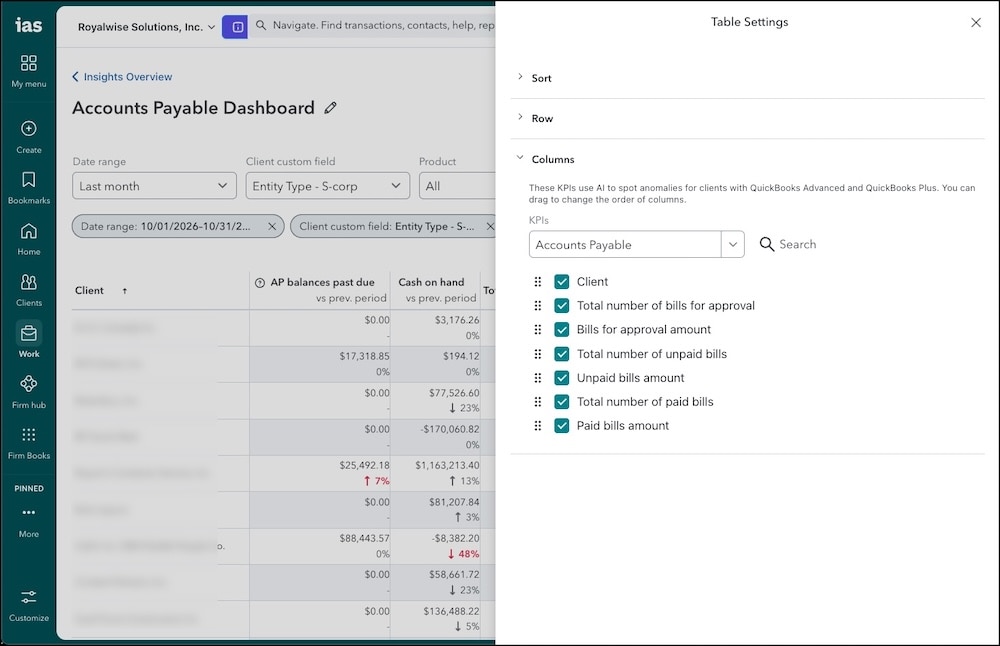
Another favorite use case is answering the question “Is our bill payment process keeping up with the business?” Create another Custom Dashboard, and this time select the entire KPI collection for Accounts payable. Add additional columns for AP balances past due and Cash on hand. 

Protip; If Unpaid bills exceed Cash on hand, you’ve got a cashflow issue. If the indicators are red, you’ve got a workflow problem.

Accounts Payable Dashboard Table Settings Screen.

Your mission, should you choose to accept it

All of this superhuman strength lives inside Intuit Accountant Suite’s Accelerate tier. If you’ve never looked at your data this way, or considered advising your clients about warning signs and opportunities, you’ve opened new possibilities to add service lines to your offerings … and new gadgets to your bat-belt.

For now, Client Insights is free so that you can test out Cross client portfolios and KPI dashboards to see if they’re a value add for your practice. Once the new ProPartner program rolls out in January, Accelerate will continue to be free at the Premium and Elite levels. Even if the scale of your practice doesn’t reach that tier, you may find that $149/mo becomes a small price to pay for these powerups.

Join me for my Intuit Accountant Suite course, “The Bill Buster …The Cash Crusader …The Liability Liberator … what will your CAS superhero name become?”

Register today


Recommended for you

Get the latest to your inbox

Get the latest product updates and certification news to help you grow your practice.

Looking for something else?

Get QuickBooks

Smart features made for your business. We've got you covered.

Tax Pro Center

Expert advice and resources for today’s accounting professionals.

QuickBooks Support

Get help with QuickBooks. Find articles, video tutorials, and more.

How can we help?
Talk to sales 1-800-497-1712

Monday - Friday, 5 AM to 6 PM PT

Get product support