Intuit Connect 2026 is a wrap! 
Watch the replay and catch up on the highlights.
How to manage your team in Intuit Accountant Suite Accelerate’s Firm Hub,
product update

How to manage your team in Intuit Accountant Suite Accelerate’s Firm Hub

While some ProPartners work independently in a “team” of one, the majority of bookkeepers, CAS practices, and tax firms have several professionals working together on their clients’ books. One of the features in the Intuit Accountant Suite Accelerate plan that’s going to be useful to accounting firms is the ability to manage your team in a centralized portal, the Firm Hub.

In my company, Royalwise, one of our training programs is a paid internship where my fledgling bookkeepers work on real client files, complete with Preparer and Reviewer roles, and with myself as the Approver. While our operational model is certainly different, it mirrors the needs of a CAS practice.

Intuit Accountant Suite’s new features are intended to help you track and deploy your staff in batches, saving a lot of time from managing each staff member and client individually.

Managing training in the Firm Hub

The first place to explore is the Manage training section in the Firm Hub where you can monitor your team’s training and certification status. This is mission critical now that you are required to have at least one certified staff member to continue to receive your current benefits!

You can keep tabs on what certifications each team member has earned, and can assign the free ProPartner (formerly ProAdvisor) training to them and monitor their progress. Not only does this allow you to pinpoint your priorities, but you’ll also know they’ve received their CPE.
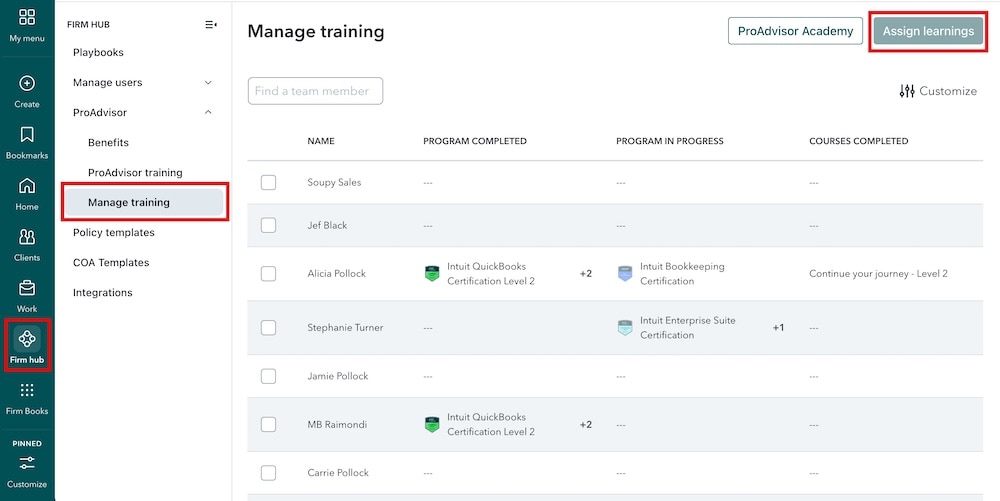
Accounting software manage training dashboard interface - How to manage your team in Intuit Accountant Suite Accelerate’s Firm Hub.

Managing Groups

If your team works in subunits that share a client roster or you define team members by similar characteristics, you can organize them into Groups. This way, instead of manually adding the client to each of the users individually as we do now, you can assign a client once to an entire group containing several users.

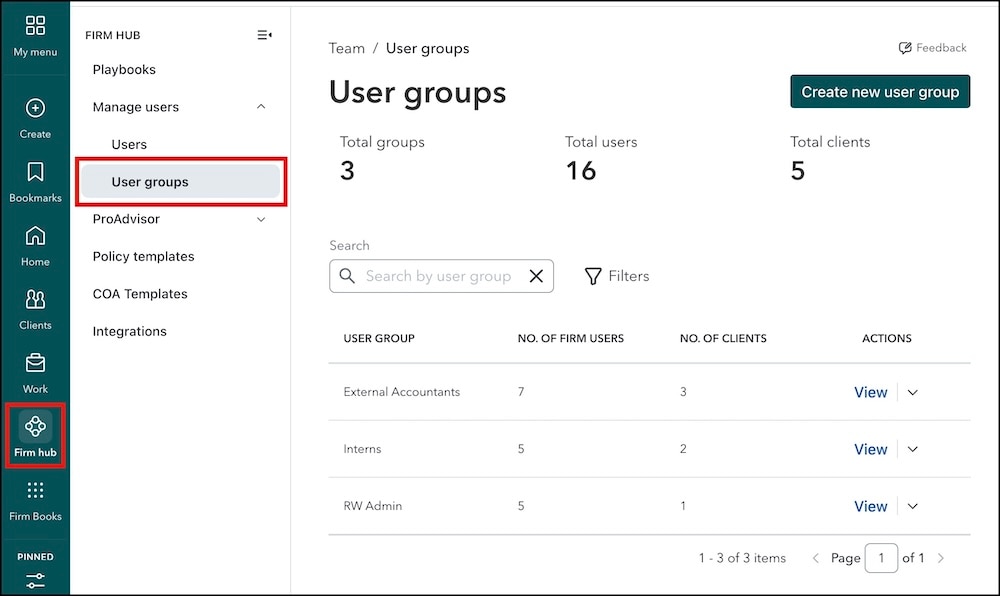
Head to Firm Hub > Manage Users > User Groups and click Create User Group. Select the users you want to collect into a unit, assign their default user access level, and then assign the group to the desired clients. 

One team member can belong to several groups, allowing you to assign them by responsibility, geography, niche, or any defining characteristic.

After creating the groups, you can drill into each list of users to edit their permission levels or update their list of clients. Note that permissions can also be further customized by client. User groups saves a lot of time from manually assigning clients team member by team member.

User groups management dashboard in firm hub.

Viewing your entire client roster

For a comprehensive list of all your clients and all their assigned team members, head over to the Users tab and click the Download Client Roles button in the upper right. This generates a spreadsheet with a row for every client and assigned user.

In Excel, I turn this list into a Table (Insert > Table), my secret weapon for data analysis, and if you’ve never used this feature before, it’s a game changer. Once the list is formatted as a table, you can now sort and filter by client or by user.

This list also includes the clients’ Company IDs and which user is the Lead on each engagement. This spreadsheet is handy any time you need a consolidated reference or a cross-check on your client roster.

Unfortunately, I can’t include a screenshot because every cell would have to be blurred out!

Ways to use your Groups

There are a few places where you can leverage these groups:

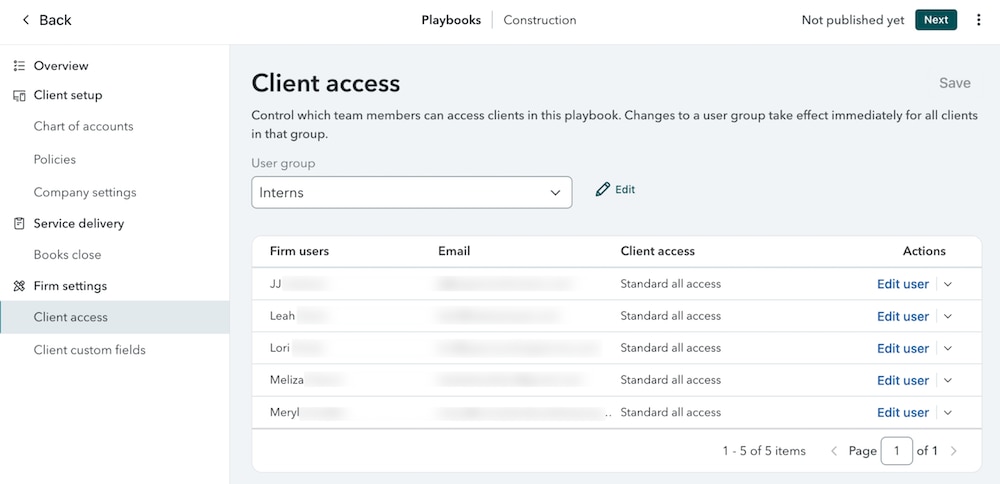
  • The first is in the new Playbooks in the Accelerate tier. Playbooks allow you to deploy a full set of company Policies, Chart of accounts, Account and Settings, Books Close settings, User groups, and Custom fields to a new client file all at once with just a few clicks.
  • You can create multiple Playbooks for each of the industries or niches you serve. Add the User Group to the Playbook to automatically add all team members to an engagement.
Client access settings screen for playbook - How to manage your team in Intuit Accountant Suite Accelerate’s Firm Hub.

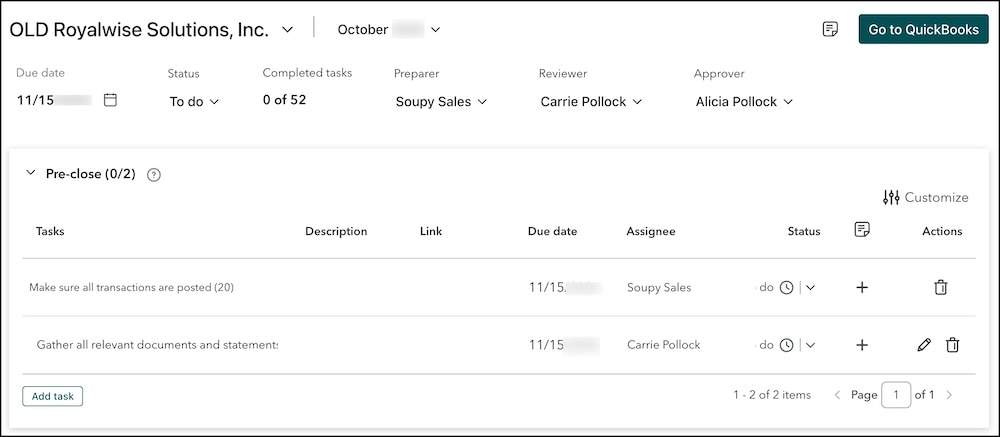
User Groups also come in handy inside Books Close. This new feature contains checklists and automations to help you review your client data inside Intuit Accountant Suite instead of drilling into each client’s QuickBooks file. Books Close is a paid add-on with a per-client cost, so you can implement it for just one client or your entire roster.

In Books Close, you assign a Preparer, Reviewer, and Approver to each monthly close, and delegate tasks that show up in their own IAS portal as well as in the Tasks list inside each client’s books. 

Leveraging User Groups makes it easy to assign tasks to the short list of relevant users.

Accounting task dashboard with QuickBooks button - How to manage your team in Intuit Accountant Suite Accelerate’s Firm Hub.

Where to go from here

User Groups are just one of many subtle new benefits to explore in Intuit Accountant Suite’s Accelerate and Books Close features. Firms with teams to deploy will rejoice at the time saved by creating functional groupings of their staff.

Accelerate will become a paid plan in 2027, but for now there’s no cost, so that you can try it out and see if it’s helpful for you. When you qualify for the Premier or Elite tier in the ProPartner program it will continue to be free … which makes sense because you’ll have reached those levels by operating at scale!

This is the perfect time to dig in and see if Manage Training and User Groups will be helpful for your practice. Give it a try and tell us what you think. As always, click on in-product Feedback to let us know that the feature solves a pain point for you, and if you have any ideas for how to improve the experience.


Recommended for you

Get the latest to your inbox

Get the latest product updates and certification news to help you grow your practice.

Looking for something else?

Get QuickBooks

Smart features made for your business. We've got you covered.

Tax Pro Center

Expert advice and resources for today’s accounting professionals.

QuickBooks Support

Get help with QuickBooks. Find articles, video tutorials, and more.

How can we help?
Talk to sales 1-800-497-1712

Monday - Friday, 5 AM to 6 PM PT

Get product support